How to Use Google KMS for DigiCert Code Signing?
Published: August 18, 2026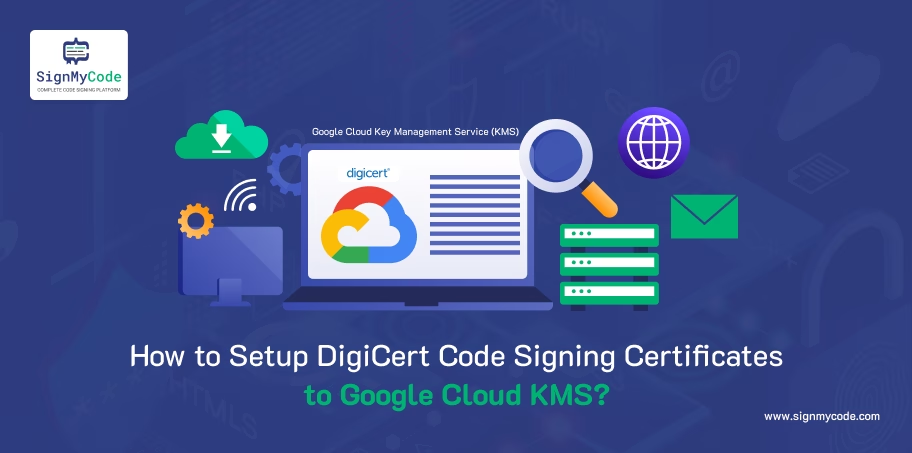
Introduction
Setting up DigiCert Code Signing with Google Cloud KMS provides a secure way to protect your code-signing keys while enabling trusted digital signatures.
The important point is that the private key must be generated inside Cloud KMS and should never be exported. You can use Google Cloud KMS as the hardware-backed key storage for a DigiCert Code Signing Certificate. When placing your order, select “Install on Existing HSM” as the delivery method to use your Google Cloud KMS environment for secure key storage.
This guide walks through the key steps to configure Google Cloud KMS for DigiCert Code Signing using the Google Cloud command-line interface (CLI). If you want to use the Google KMS API, you can follow this guide.
In Simple Terms
Private key → Stays in Google Cloud KMS
Certificate → DigiCert OV or EV Code Signing
Signing Operation → Performed using the KMS private key
Prerequisites
- A Google Cloud project with a HSM Setup
- The Cloud HSM Admin and Cloud KMS CryptoKey Encrypter/Decrypter Identity and Access Management (IAM) roles
- The Google Cloud command-line interface (CLI) installed
- OpenSSL installed for creating the CSR
How to Obtain an Attestation File and CSR from Google Cloud HSM?
Step 1: Create a Google Cloud Project
Open your Google Cloud Console and create or select the project that will be used for code signing.
# Enable Cloud KMS API:
gcloud services enable cloudkms.googleapis.comYou will also need appropriate IAM permissions for the account that will create and use the key.
# Create a service account for signing
gcloud iam service-accounts create codesign-signer \
--display-name "Code Signing Service Account"
# Grant Signing Permission on the Key
gcloud kms keys add-iam-policy-binding codesign-key \
  --keyring codesign-keyring \
  --location global \
  --member "serviceAccount:codesign-signer@YOUR_PROJECT.iam.gserviceaccount.com" \
  --role "roles/cloudkms.signerVerifier"
# Create a Service Account Key File (for use outside GCP)
gcloud iam service-accounts keys create ~/codesign-sa-key.json \
  --iam-account codesign-signer@YOUR_PROJECT.iam.gserviceaccount.com
Step 2: Create a Cloud KMS Key Ring
For example:
gcloud kms keyrings create codesign-keyring \
--location=globalNote: You can choose any name for your keyring and use another supported location if it better fits your infrastructure. Here, we have used codesign-keyring for the key ring.
Step 3: Create the Signing Key (HSM-backed)
Create an asymmetric signing key for code signing. For a typical Windows Authenticode workflow, RSA is the practical choice.
For example:
gcloud kms keys create digicertcodesign-key\
  --location=global \
  --keyring= codesign-key \
  --purpose=asymmetric-signing \
  --default-algorithm=rsa-sign-pss-4096-sha256
This creates the private key inside Cloud KMS. You can replace or choose any name for key (here we have taken digicertcodesign-key)
Note: The private key is generated within the HSM and cannot be exported per the new CA/B forum requirements.
Step 4: Download the HSM Attestation
An HSM attestation is proof that your key resides in an HSM. This proof may be required by your Certificate Authority (CA) to issue a Code Signing certificate.
To download the HSM attestation associated with your Cloud KMS key, you can have two methods using Google Cloud console or using CLI.
#Steps using Google Cloud Console (API)
- In the Google Cloud Console, Go to Key Management
- Select the key ring that contains the key you want to attest, and then select the key.
- Click More more_vert for the key version you want to attest, and then click Verify attestation.
- In the Verify attestation dialog, click Download attestation bundle. This downloads a zip file containing the attestation and certificate chains.
# Steps using CLI:
gcloud kms keys versions describe [KEY_VERSION] \
  --key [KEY_NAME] --keyring [KEY_RING_NAME] --location [LOCATION] \
  --format 'value(attestation.format,attestation.content)' > attestation.txt
cat attestation.txt | base64 --decode > attestation.bin
Step 5: Generate the CSR
You now need a Certificate Signing Request containing the public key associated with the KMS key. The CSR is what you submit to DigiCert/Code Signing Provider(at Enrollment form).
Unlike Azure Key Vault, which generates the CSR directly in the portal, Google Cloud KMS requires you to use the PKCS#11 library and OpenSSL to generate the CSR.
# Install the PKCS#11 Library
Download the Google Cloud KMS PKCS#11 library from the Cloud KMS PKCS#11 documentation
# Create PKCS#11 Configuration File
Create a YAML config file (e.g. pkcs11-config.yaml):
tokens:
- key_ring: "projects/YOUR_PROJECT/locations/global/keyRings/codesign-keyring"
    label: "codesign"
# Generate the CSR with OpenSSL
Set environment variables:
export KMS_PKCS11_CONFIG=./pkcs11-config.yaml
export GOOGLE_APPLICATION_CREDENTIALS=~/codesign-sa-key.json
# Generate CSR
openssl req -new \
  -subj "/CN=Your Company Name" \
  -sha256 \
  -engine pkcs11 \
  -keyform engine \
  -key "pkcs11:object=codesign-key;type=private" \
  -out codesign.csr
Step 6: Order your DigiCert Code Signing Certificate
DigiCert currently requires code signing private keys to be stored on compliant hardware or a USB token. You can select “Install on Existing HSM” as one of the supported provisioning methods to acquire a Google KMS certificate. You can purchase DigiCert OV or EV Code Signing Certificate.
Note: For public Code Signing certificates, the maximum validity is currently 459 days, following the February 24, 2026 industry change.
Step 7: Submit the CSR to DigiCert
During the DigiCert certificate request process, provide the CSR (codesign.csr) generated from your Cloud KMS key.
DigiCert will perform the required organization and code signing validation.
Once validation is complete, DigiCert issues the certificate corresponding to the public key in your CSR.
Step 8: Download the DigiCert Certificate
After issuance, download the certificate(codesigning.cer) from the dashboard (SignMyCode order) or email ID.
You may also need the appropriate DigiCert intermediate certificate chain. The important thing is that you do not receive or create a PFX containing the private key.
How to Install DigiCert Code Signing Certificate in Google KMS and Sign the Code?
Step 9: Install the Google Cloud KMS CNG Provider
For Windows-based signing, Google provides a CNG Provider and SignTool integration specifically for Cloud KMS.
- Install the Google Cloud KMS CNG Provider on your Windows signing machine.
- The signing machine needs access to the appropriate Google Cloud project and Cloud KMS key.
- You should grant the signing identity only the permissions it needs, particularly permission to use the asymmetric signing key.
- Avoid giving the CI/CD service account broad project permissions.
# Import the certificate into Google Cloud HSM:
gcloud kms keys versions
import --keyring=<key-ring-name> --key=<key-name>
--location=<location>
--algorithm=rsa-sign-pss-4096-sha256
--input-file=<path_to_certificate>
Step 10: Sign your Windows Application
You can sign your code via SignTool or JSign: Install the tool and follow the command below for signing
# Sign with Signtool
signtool sign /sha1 YOUR_CERT_THUMBPRINT /fd sha256 ^
  /tr http://timestamp.digicert.com /td sha256 ^
  "MyApplication.exe"
# Sign with Jsign
jsign --storetype GOOGLECLOUD \
  --storepass "$(cat ~/codesign-sa-key.json)" \
  --keystore "projects/YOUR_PROJECT/locations/global/keyRings/codesign-keyring" \
  --alias "digicertcodesign-key" \
  --certfile codesign-cert.pem \
  --tsaurl http://timestamp.digicert.com \
  --tsmode RFC3161 \
  MyApplication.exe
# Important: Timestamping
We recommend timestamping your signatures. A timestamp allows the signature to retain validity after the signing certificate expires, provided the signature and timestamp were valid when the software was signed.
For example:
/t http://timestamp.digicert.comStep 11: Verify the Digital Signature
After signing, use the command below for verification:
signtool verify /pa /v application.exeYou should see that the signature is valid and that the certificate chains to a trusted DigiCert root.
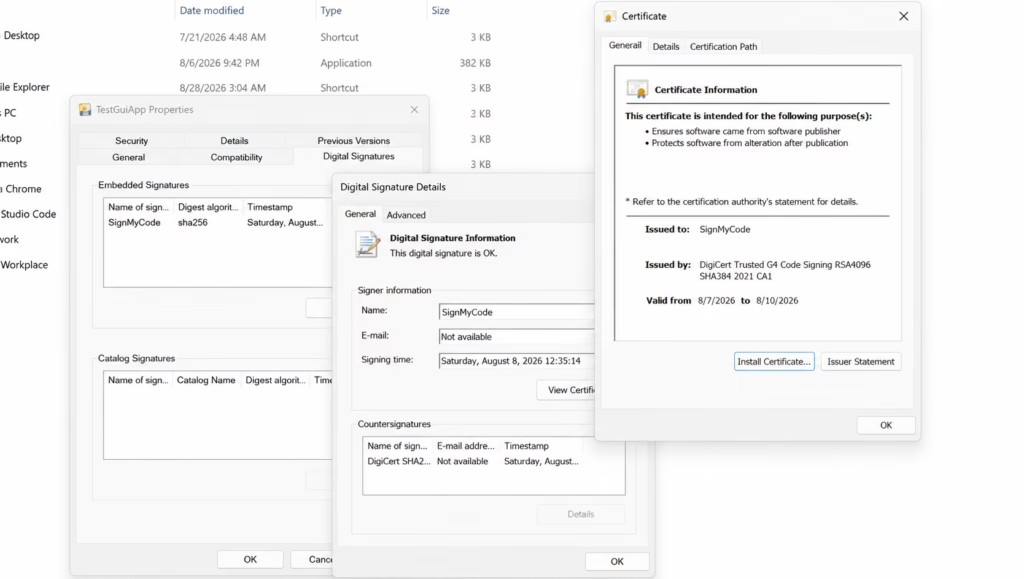
You can also right-click the EXE:
Properties → Digital Signatures → Details. You should see your DigiCert Code Signing Certificate like this:
Conclusion
By integrating DigiCert Code Signing with Google Cloud KMS, you can keep your private signing keys protected within Google’s cloud-based key management infrastructure while using DigiCert to establish trust for your software. With the PKCS#11 library and OpenSSL handling key and CSR operations, the setup provides a secure and flexible approach to code signing.
Cloud Code Signing
Seamless Automated Code Signing Tasks without Need of Physical HSM or Token using Cloud Code Signing Certificate.
Code Signing as a Service