How to Digitally Sign Binaries with Signing Manager Controller (SMCTL)?
What is SMCTL?
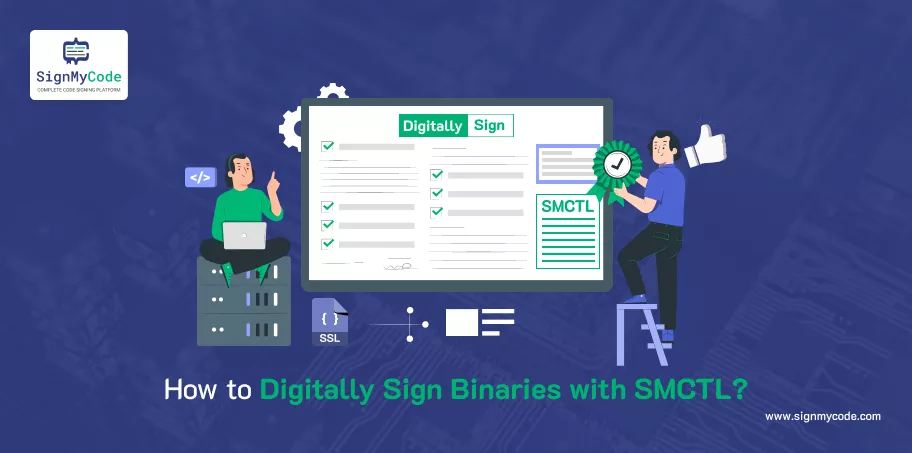
SMCTL stands for Signing Manager Controller and is a Command Line Interface (CLI) tool created by DigiCert. It can be used for code signing, for managing private keys, and for managing certificates in both manual and automated scenarios.
SMCTL allows developers to securely sign their software files (binaries, executables, packages) with signing services provided by DigiCert ONE.
SMCTL provides the ability to interface with a number of other third-party signing tools, such as Signtool, Jarsigner, Apksigner, jsign, etc., thus this tool is flexible enough for use across both brands of operating systems – Windows, Linux, and macOS.
SMCTL allows users to easily sign files, using either a keypair alias or a certificate fingerprint, manage environment variables for tool paths, and do things like verify or remove digital signatures from files.
Why Use SMCTL for Digital Signing?
SMCTL offers numerous advantages, including:
Automated and Manual Signing
SMCTL allows for both manual and automated signing to fit a range of use cases. Open Inspection in Solid holds great value and is adequate for CI/CD pipelines, though largely unmonitored manual signing can be performed by developers signing the binary by privileged request.
Seamless Integration with Third-Party Tools
One significant factor of advantage for SMCTL is being able to integrate with the various widely accepted signing tools like SignTool, Jarsigner, and jsign.
Recommended: How to Sign Executables Using DigiCert KeyLocker CloudHSM?
This makes developers and security teams able to use their preferred signing tools while massively leveraging the security benefits of SMCTL.
Enhanced Security and Compliance
When distributing software, security can be up part of the concern. Therefore, SMCTL tries to build a solid digital signature process by best practices.
Use of cryptographic signatures ensures against any form of tampering and confirms that it indeed came from a trusted distributor. SMCTL also assists in complying with software signing rules and standards to reduce the potential for unauthorized changes.
Cross-Platform Support
Characteristic of SMCTL is compatibility with not just Windows operating systems but also Linux and macOS. Such a set of cross-processes enables teams to maintain the same code signing practices, regardless of the environment being used for development.
Prerequisites for Using SMCTL
Before you begin signing binaries with SMCTL, ensure that you have the following:
SMCTL Installed
Before using SMCTL, visit DigiCert to download and install the latest version. This installation allows one to access all the available signing features and ensures the tool works as required.
DigiCert ONE API Key
Without a DigiCert ONE API Key, it cannot authenticate itself with the DigiCert signing platform and clearly cannot validate its signing requests.
DigiCert ONE Client Authentication Certificate
This is another certificate issued by DigiCert to enable secure authentication with the signing service. Otherwise, SMCTL is unable to perform any digital signing process.
Third-Party Signing Tools
You may have to install different signing tools such as SignTool, Jarsigner, or osslsigncode, depending on the operating system being used and the various types of files to be signed. Such a tool would work together with SMCTL for proper signing of the binaries.
Configured Key Pair and Certificate
A key pair and certificate are already fully set up for the entire signing process. This is intended for the whole signing process to be properly authenticated and validated.
The File or Folder to Be Signed
Make sure that you have other files that you want to sign and set aside in a location seen by SMCTL. Check that there aren’t unsupported characters in the file paths so that signing errors are avoided.
Setting up SMCTL
Install and set up SMCTL
If you want to configure SMCTL on your computer. Therefore, download the file you will need for your OS. Make sure you get the latest released package from its official website or package repository, following the installation instructions for your OS to the letter.
In Linux/macOS, install directly or use the package managers like apt, yum, or brew. When Windows users are to install SMCTL, they may simply use the executable installers or use package managers such as choco or scoop.
Lastly, once the installation is concluded, test it by typing smctl —version in your command line.
Configuring SMCTL for Your Environment
Once the installation is done, you need to configure SMCTL in accordance with your system and network settings. Most times, these settings are some authentication credentials you will need, API endpoints, and default parameters.
You may need to edit these configurations manually or run built-in setup commands such as smctl config set <option> <value>.
It is optionally required to set the development environment variables, depending on your use case. Proper configuration assures that SMCTL successfully communicates with the needed services.
Checking Connectivity and Permissions
Before using SMCTL in earnest, it is necessary to check whether this tool has sufficient access and permissions. A good practice is to run a test command, such as smctl status or smctl list, to check for connectivity to the server or cloud service.
Anything else beyond this should give clues about what authentication settings you should check, the configuration of your firewall, and, of course, the permission levels attributed to your user account.
Identifying connectivity problems early can spare lots of inconvenience in executing other pivotal commands later on.
Verifying Basic Commands
At the completion of tests that have confirmed connectivity, you may want to explore the most basic SMCTL commands. Calling smctl help, smctl info, or smctl list-resources will provide you with an overview of functionalities available at your command.
While testing different options, keep an eye on how each of them interacts with your environment. This will facilitate your gaining confidence in using SMCTL effectively in managing tasks and resources.
Automate and Script with SMCTL
To better streamline this, integrate SMCTL inside an automation script or command-line workflow. Batch or shell scripts may require little to no human intervention when handling repetitive tasks.
Regular status checks, backups, or config changes may be automated with scheduled tasks or cron jobs. By understanding scripting capabilities, SMCTL can be utilized in your environment continuously and most efficiently.
How to Sign Binaries with SMCTL?
The act of signing them in SMCTL remains nothing but simple verification and provisioning of security on files. There are manifold ways SMCTL allows signing.
You may leave the default signing tool to automate, or give a specific keypair alias, or even use the fingerprint of a certificate. What follows is a detail of these different methods of signing binaries with SMCTL.
1. Sign Using the Default Signing Tool
SMCTL does this very easily by just selecting the proper signing tool according to file type and OS. If no signing tool is specified in the command, SMCTL itself decides on the best of the tools available on your system and complies with the signing operation accordingly.
This method comes out to be very comfortable for users who want secure and effective digital signatures but do not want to indulge themselves in performing the said signing tools manually.
Keypair Alias Method (Preferred)
The keypair alias method is the recommended way to sign binaries since it allows the signed binaries to be compatible with different signing tools. In general, SMCTL uses the private key associated with the given alias to carry out the signing.
This method is widely preferred because it avoids situations, on the other hand, where a user has to explicitly define a certificate fingerprint.
To sign a file using the keypair alias, the following command is given:
smctl sign --keypair-alias <keypair alias> --input <path to file>Example:
smctl sign –keypair-alias kp3 –input C:\Users\Name\Desktop\file_to_sign.exe
This way, one could manage their certificate more easily and assure that the correct certificate is used for signing.
Certificate Fingerprint Method
If it happens that a binary must be signed with a specific certificate, the certificate fingerprint method is used.
This method is primarily used when signing with the KSP (Key Storage Provider) library, or when the certificate is already synchronized with the Windows certificate store.
To sign a file using a certificate fingerprint, use the following command:
smctl sign --fingerprint <certificate fingerprint> --input <path to file>Example:
smctl sign –fingerprint aa42b7d92f826d0ad6d23aa0d778c8cbfab7d61d –input C:\Users\Name\Desktop\file_to_sign.exe
As the fingerprint is the unique identifier of a specific certificate, this method ensures the signing with that specific certificate. However, managing fingerprints is more cumbersome than doing so when you use the keypair alias method.
2. Sign with a Specific Third-Party Tool
Although SMCTL offers an in-built signing mechanism, situations do arise where external signing tools are warranted. In these cases, SMCTL can take care to explicitly call a third-party tool compatible with differing file formats and security policies.
Recommended: How to Configure KeyLocker for Click-to-Sign & Sign Windows Files?
Signing with an external tool is prudent if certain requirements dictate the signing process or if the default SMCTL signing tool is unavailable.
To invoke a specific third-party tool for signing, the flag –tool and the required parameters should be applied:
smctl sign --keypair-alias <keypair alias> --certificate <path to cert> --input <path> --tool <tool>Example (using jsign):
smctl sign –keypair-alias=dynamic-kp1 –certificate C:\Users\John.Doe\Desktop\certificate.pem –input C:\Users\John.Doe\Desktop\file_to_sign.exe –tool jsign
This command explicitly instructs SMCTL to utilize jsign to carry out signing as opposed to relying on the default selection.
Such an option to choose a signing tool is especially potent in organizations due to their varied signing techniques used for different binaries by various teams.
3. Special Case: Signing Android APKs
Signing an Android package requires some special attention. Utilizing SMCTL, when signing APK files, SMCTL might generate multiple signatures for different versions of Android, and hence, sees some incompatibility bugs with some devices or app stores.
To get rid of the headaches of multiple signatures being created, Android APK files should, therefore, preferably be signed directly with Apksigner, instead of SMCTL.
Doing so will force the APK to comply with Android security policies, thus preventing installation or verification failures on devices.
Troubleshooting Common Issues while using SMCTL
Installation Errors
Installation errors are one of the most common and dreaded problems encountered while installing SMCTL. They can be triggered by a variety of problems, such as a missing library, an incompatible OS, or even a sequence of installation procedures that did not go smoothly.
In case of a catastrophic and failed installation, begin by carefully examining printed error messages. Verify that all the necessary libraries or tools are installed by using the current release of SMCTL that corresponds to your support environment.
And if you’re employing a package manager, make sure your repository is up to date, and reinstall the package or try to download the installer from the official website directly.
Another useful troubleshooting technique is visiting user forums and the documentation provided by the company, since both these places have extensive discussions on solving installation problems.
Configuration Issues
A number of factors may affect the ability of SMCTL to communicate with its service API, due to a number of initializations.
Invalid credentials, non-availability of configuration files, wrongly specified networking options, and bad types of fields can be taken as some of the common reasons for rejection.
In any failed connection scenario, look into the configuration files, verifying any parameters necessary, such as API endpoints, authentication tokens, and environment variables. Utilize the smctl config commands to examine and modify your configuration parameters.
If your setup at all does not fix the problem, then go ahead and reset your settings to their default levels and start again going through the setup process to ensure that you did it correctly.
Permission Denied Errors
Permission Denied errors typically arise when SMCTL doesn’t have the appropriate access privileges to execute specific tasks.
Such problems can arise due to incorrect user permissions, lack of appropriate file access permissions, or incorrect configurations within cloud platforms or network systems.
First, ensure that your user account is set up with the appropriate permissions to act. You may be required to consult your system administrator or adjust access control settings on the cloud platforms.
On top of that, use the correct API keys or credentials and ensure they have the correct scope for the job in question.
Connectivity Problems
Failure of SMCTL to connect with remote servers, services, or APIs indicates a network issue. It can also be caused by a firewall issue, a misconfigured proxy setting, or a wrong DNS resolution.
Begin with a simple test for network connectivity using commands like ping or curl to check your server connection. In warehouse setups where a proxy configuration is being implemented, set the system and the SMCTL properly to support the configuration for the proxy.
When employing the use of a VPN or hardware firewall, ensure that these are not configured to hinder functionality.
Turning off the firewall at some point temporarily allows you to determine if it is directing you towards the source of the actual problem. If so, have your firewall configured properly.
Command Failures & Unexpected Behaviour
In some cases, SMCTL commands may not have been run correctly or may have had erratic behavior. Parameters missing or obsolete software versions usually have bad syntax.
Double-check your call for spelling errors, incorrect options or flags, or default parameters not being defined.
If problems persist, make sure you have the latest version of SMCTL by executing the following command: smctl –version, and compare the release with the latest.
If you enter smctl help, you will be provided with a list of commands, and their syntax. If problems continue to exist, check the logs for correct error messages, and check the support forum or community for help in debugging.
File Integrity and Signing Issues
The issues that are experienced when signing files, such as “signature invalid” errors or failure to verify, may be caused by an unstable binary, out-of-date keys, or a default configuration.
Recommended: What is File Integrity? Difference Between File Integrity and Authenticity
One of the most crucial repairs in the process is ensuring that the binary itself is clean and intact before signing, that the signing key is valid, and that the signing process has been done correctly.
Moreover, it will also be wise to ensure that the timestamping service is operational, especially if it has been utilized. Where HSM or cloud key services are being utilized, it will be important to ensure that the connection to such services is secure and well established.
Conclusion:
Protect your software against tampering and unauthorized alteration using SignMyCode. Buy authentic code signing certificates to make your software secure and trustworthy.
Cloud Code Signing
Seamless Automated Code Signing Tasks without Need of Physical HSM or Token using Cloud Code Signing Certificate.
Code Signing as a Service